firebase cloud storage를 사용하려면
firebase storage 랑 firebase core 패키지 2개를 받아야 한다.
일단 파이어베이스에서 storage를 시작한다.

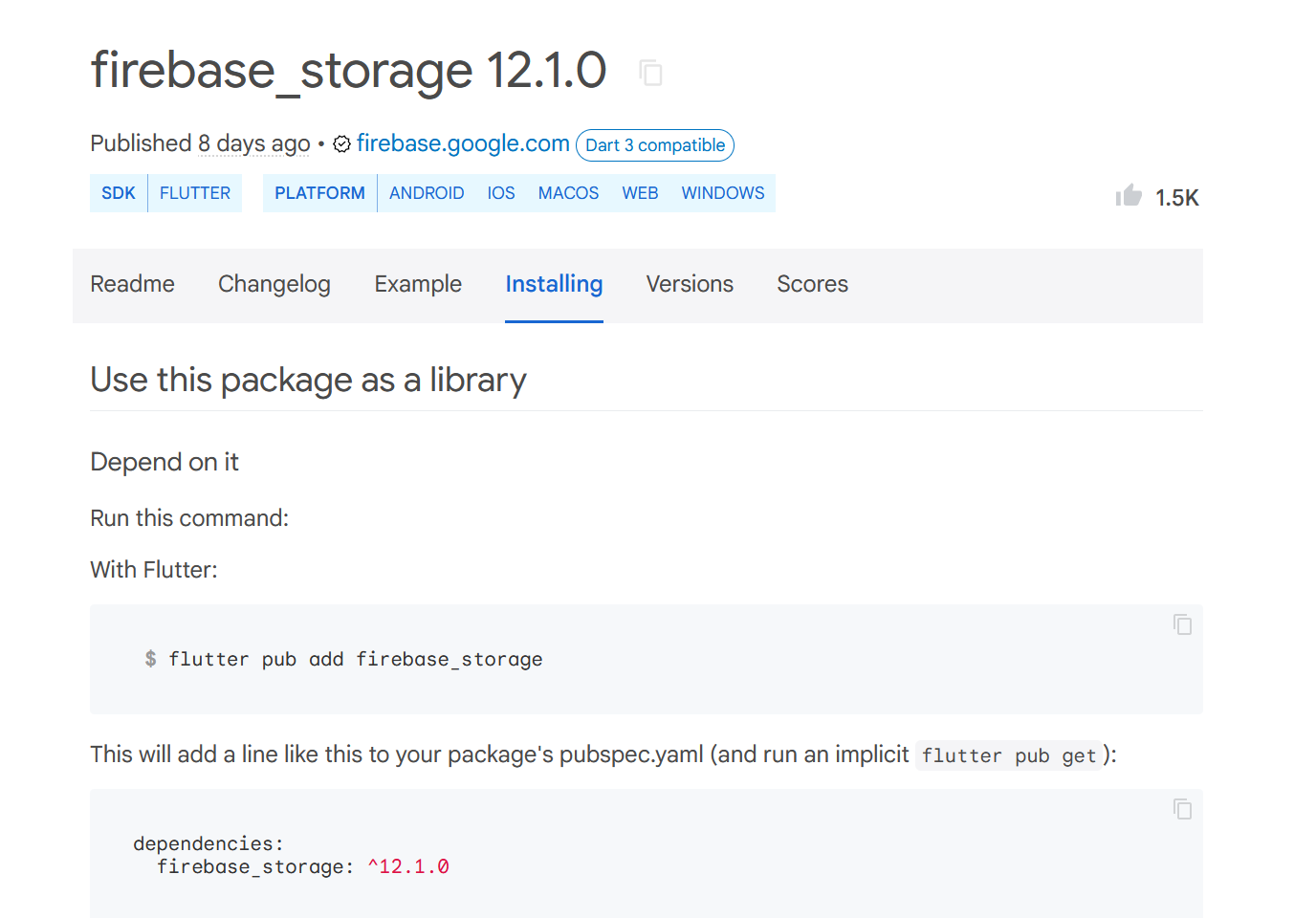
터미널을 이용해서 firebase_storage 패키지를 다운받자

이번에는 file_picker도 사용할 것이다.
파일을 받는데 사용할 것
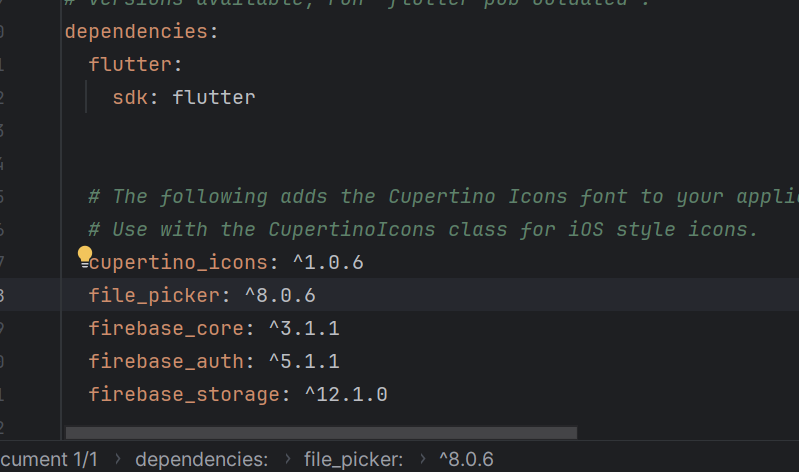
pub.dev에서 file_picker를 다운받자

이제 코드를 수정하자
body: Center(
  // Center is a layout widget. It takes a single child and positions it
  // in the middle of the parent.
  child: Column(
    mainAxisAlignment: MainAxisAlignment.center,
    children: <Widget>[
      const Text(
        'You have pushed the button this many times:',
      ),
      ElevatedButton(
        onPressed: () async {
          final credential = await FirebaseAuth.instance
              .signInWithEmailAndPassword(
                  email: "flutter@naver.com", password: "123456");
          print(credential);
        },
        child: Text('로그인'),
      ),
      Divider(),
      ElevatedButton(
        onPressed: () async {
          FilePickerResult? result =
              await FilePicker.platform.pickFiles();
          if (result != null) {
            File file = File(result.files.single.path ?? "");
            print(file.path);
            try {
              await FirebaseStorage.instance
                  .ref(
                      "image/${DateTime.now().millisecondsSinceEpoch}.jpg")
                  .putFile(file);
            } on FirebaseException catch (e) {
              print(e.toString());
            }
          }
        },
        child: Text('파일업로드'),
      ),
    ],
  ),
),
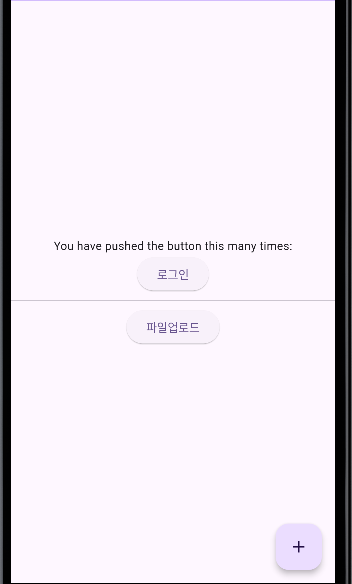
코드를 수정한 뒤 실행하고 디바이스에 사진을 저장하여 파일 업로드를 실행한다.

이렇게 이미지 폴더가 만들어지면서 파일이 올라가게 된다.
'Flutter' 카테고리의 다른 글
| firebase - realtime database (0) | 2024.07.06 |
|---|---|
| firebase - firestore (0) | 2024.07.04 |
| firebase- 인증 (0) | 2024.07.02 |
| firebase -cli 실습 (0) | 2024.07.02 |
| firebase -cli (0) | 2024.07.02 |


