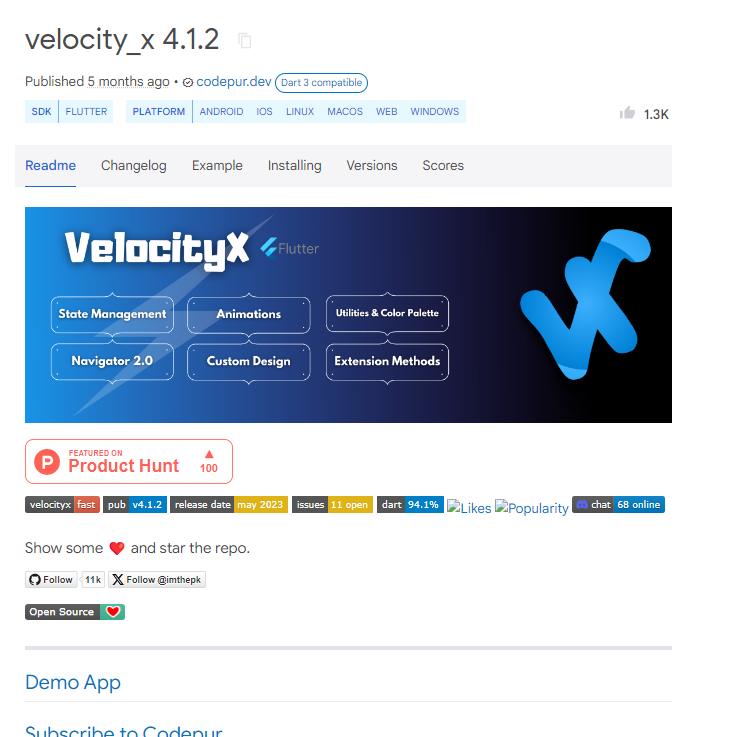
velocity 패키지를 통해 코드를 더 간결하게 할 수 있다.
$ flutter pub add velocity_x이걸 터미널에 입력해 설치한다.
우리가 패딩을 넣을 때 이렇게 사용한다.
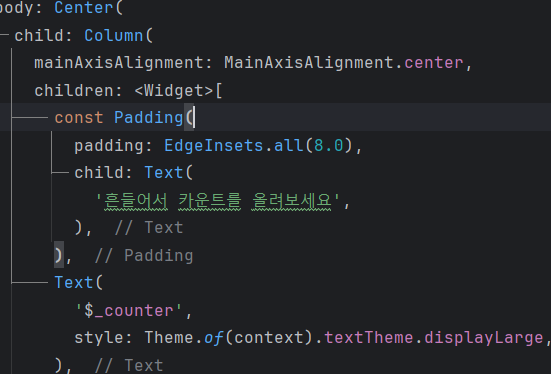
이렇게 만들면 padding 이 복잡하다.
velocity를 사용하면

이렇게 간결하게 p를 붙임으로서 패딩을 넣을 수 있다.
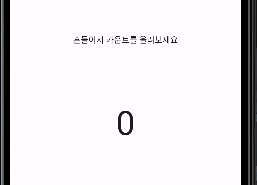
패딩이 생긴 것을 볼 수 있다.

pSymmetric으로도 사용 가능
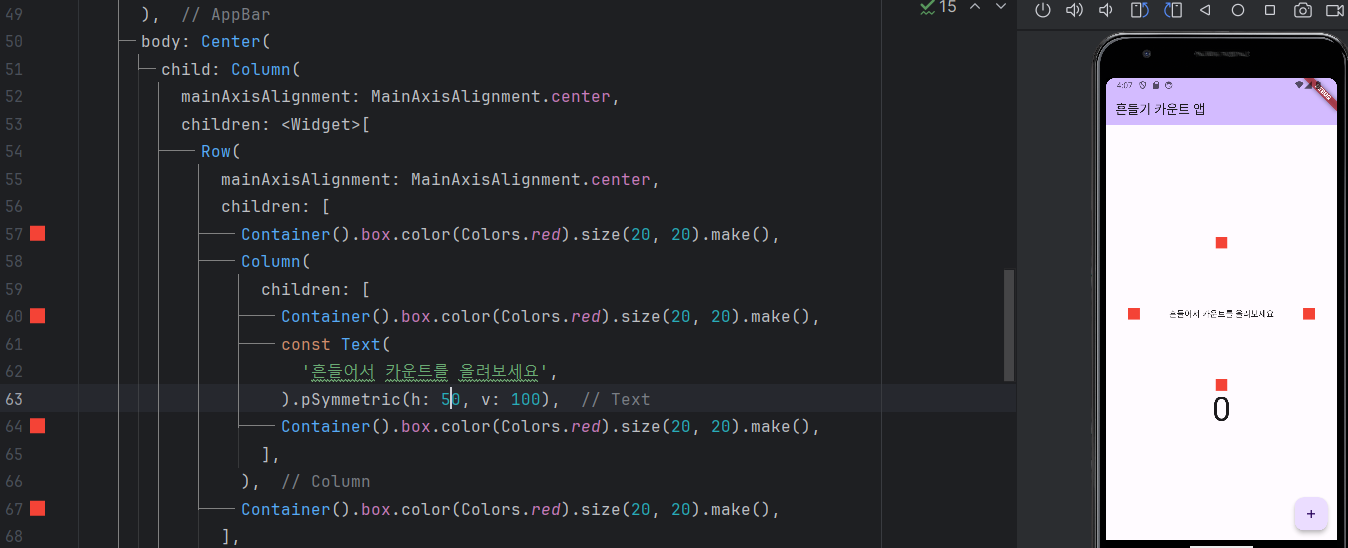
이런 식으로 빨간 박스를 표현 가능하다.
이게 반복이 된다.
반복되는 부분을 선택하고

ctrl + alt + m 을 누른다.
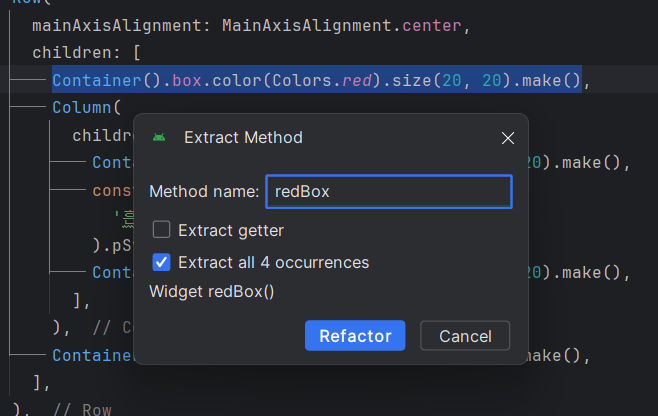
이 코드처럼 redBox가 한개로 묶인다.
import 'package:flutter/material.dart';
import 'package:shake/shake.dart';
import 'package:velocity_x/velocity_x.dart';


class MyHomePage extends StatefulWidget {
  const MyHomePage({super.key, required this.title});

  final String title;

  @override
  State<MyHomePage> createState() => _MyHomePageState();
}

class _MyHomePageState extends State<MyHomePage> with WidgetsBindingObserver{ // with로 선언해줘야됨
  int _counter = 0;
  late ShakeDetector detector;

  @override
  void initState(){
    WidgetsBinding.instance.addObserver(this);  // addObserver는 관찰할 대상이 필요하다.
    detector = ShakeDetector.autoStart(onPhoneShake: (){
      setState(() {  // counter가 올라가는 것을 화면에 반영하기 위해서 setState에 넣자
        _counter++;
      });
    },
    shakeThresholdGravity: 1.5);
    super.initState();
  }

  @override
  void dispose(){
    WidgetsBinding.instance.removeObserver(this);  //state 가 사라질 떄 lister를 제거해준다.
    super.dispose();
  }

  void _incrementCounter() {
    setState(() {
      _counter++;
    });
  }

  @override
  Widget build(BuildContext context) {
    return Scaffold(
      appBar: AppBar(
        backgroundColor: Theme.of(context).colorScheme.inversePrimary,
        title: Text(widget.title),
      ),
      body: Center(
        child: Column(
          mainAxisAlignment: MainAxisAlignment.center,
          children: <Widget>[
            Row(
              mainAxisAlignment: MainAxisAlignment.center,
              children: [
                redBox(),
                Column(
                  children: [
                    redBox(),
                    const Text(
                      '흔들어서 카운트를 올려보세요',
                    ).pSymmetric(h: 50, v: 100),
                    redBox(),
                  ],
                ),
                redBox(),
              ],
            ),
            Text(
              '$_counter',
              style: Theme.of(context).textTheme.displayLarge,
            ),
          ],
        ),
      ),
      floatingActionButton: FloatingActionButton(
        onPressed: _incrementCounter,
        tooltip: 'Increment',
        child: const Icon(Icons.add),
      ), // This trailing comma makes auto-formatting nicer for build methods.
    );
  }

  Widget redBox() => Container().box.color(Colors.red).size(20, 20).make();

  @override
  void didChangeAppLifecycleState(AppLifecycleState state){
    switch(state){

      case AppLifecycleState.detached:
        break;
      case AppLifecycleState.resumed:
        // resume 되면 다시 listening이 되도록 한다.
        detector.startListening();
        break;
      case AppLifecycleState.inactive:
        break;
      case AppLifecycleState.hidden:
        break;
      case AppLifecycleState.paused:
        // 화면 밖으로 나가서 멈춰있는 상태
        detector.stopListening();
        break;
    }
  }
}
만약 redBox를 다른 함수에서도 쓰려면 위젯으로 빼내자
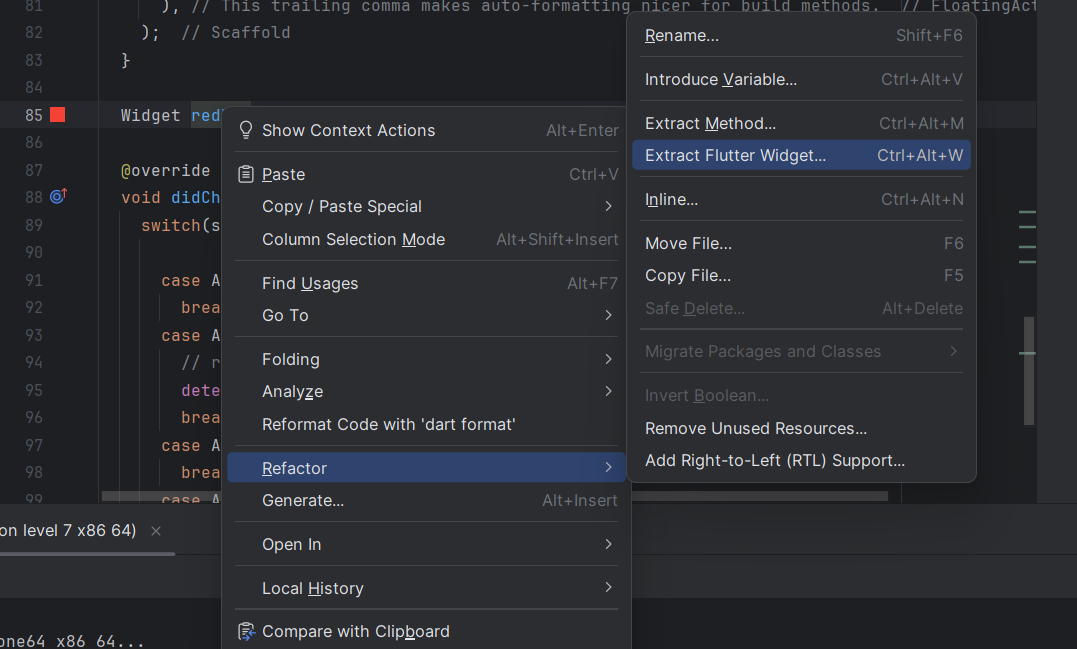
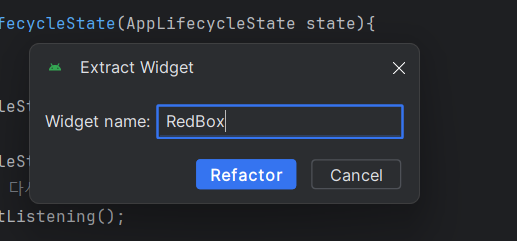
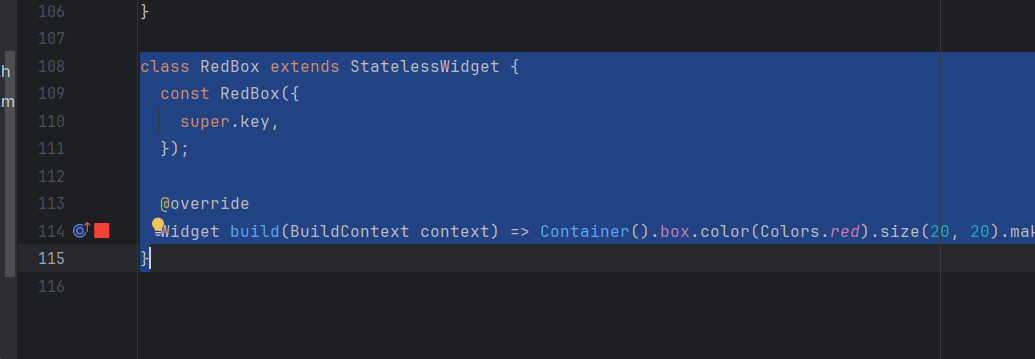
생성된걸 빼서 lib 아래에 red_box.dart로 만든다.
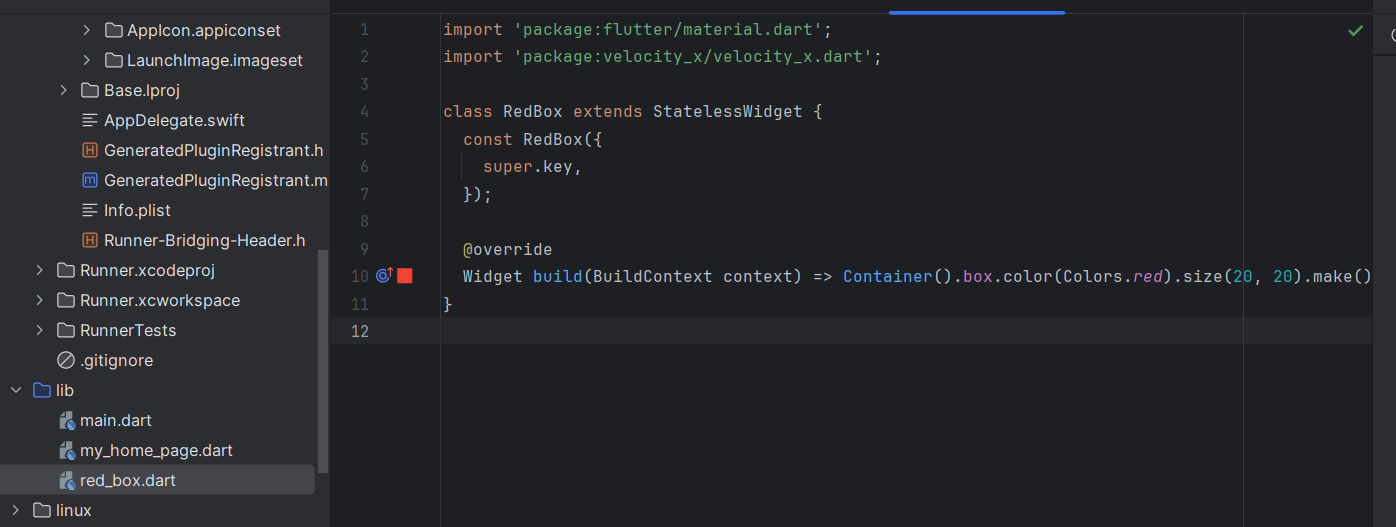
필요한 부분은 import를 해주자
보다보면 노란색 밑줄로 const를 요구하기도 한다.
const 가 없는 것은 빌드 함수가 만들어질 때마다 새로 생성을 하는 것이고
const가 붙으면 미리 다 만들어진 것을 쓰는 것이다.
기존의 text에도 velocity를 적용하자

이렇게 text 괄호를 지우고 원하는 텍스트 뒤에 나열을 한다.
이제 ctrl + alt + l로 정렬을 하자
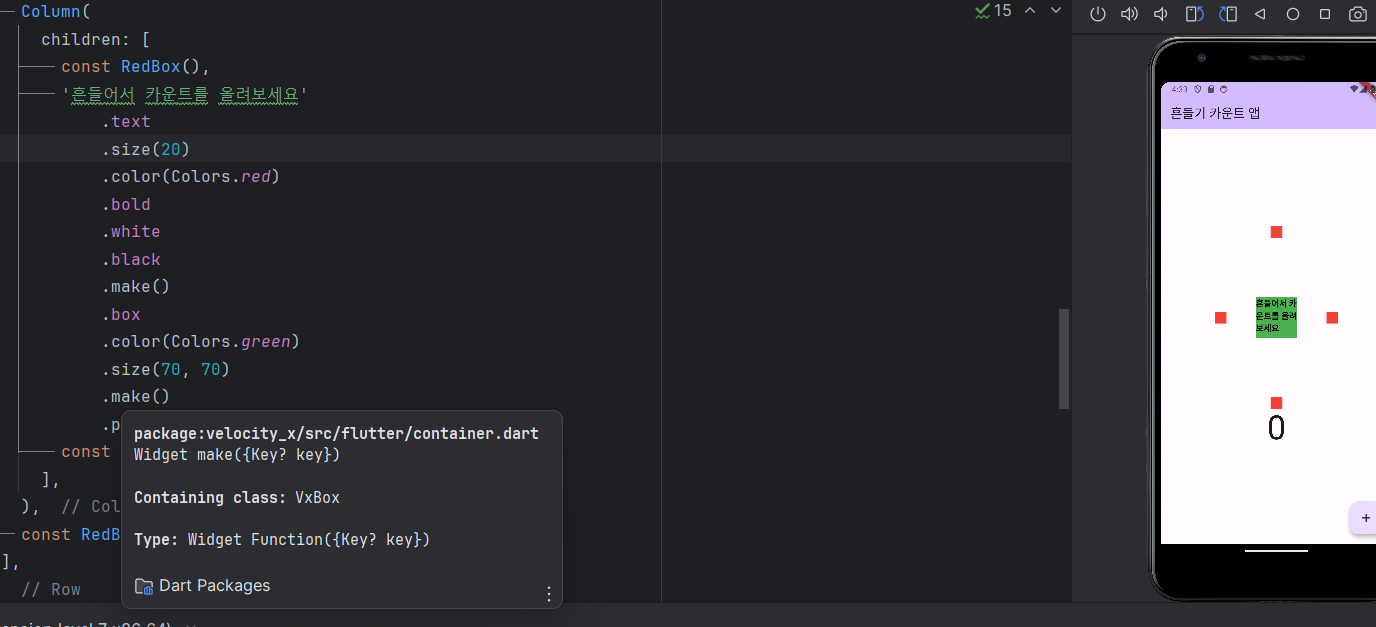
글자 크기가 변했으므로 isIntrinsic을 추가한다.
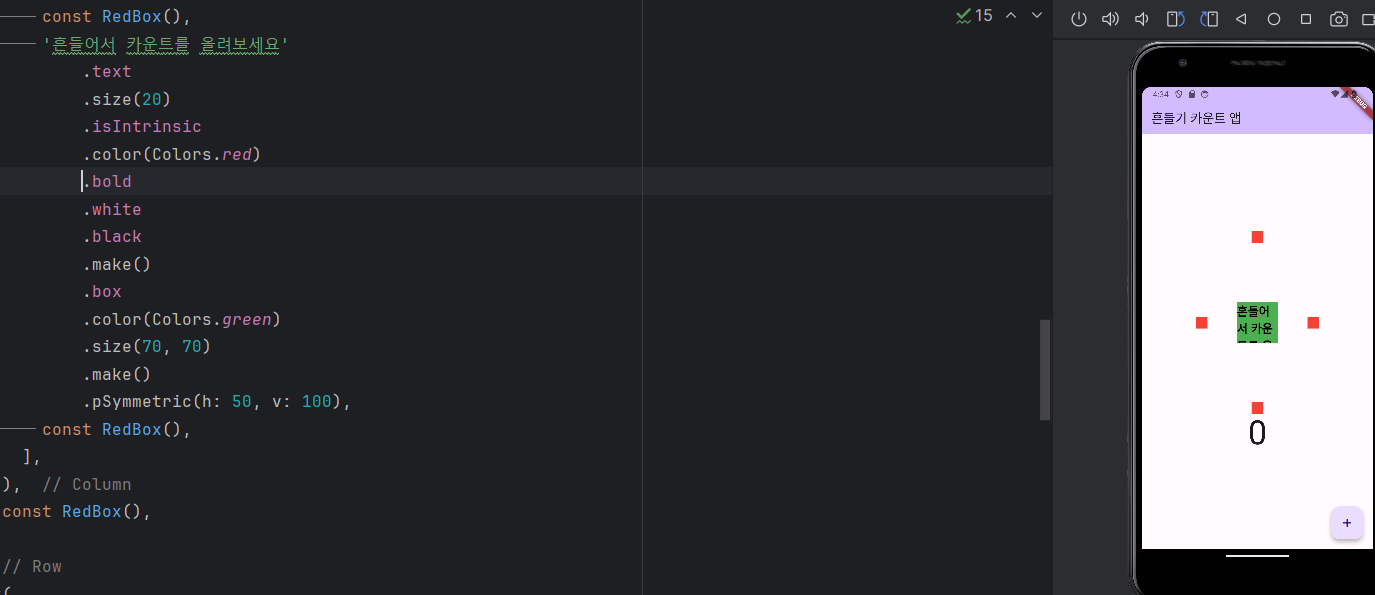
글자 크기가 변했다.
'Flutter' 카테고리의 다른 글
| 토스앱 만들기 - 앱 하단바 만들기 (0) | 2024.05.01 |
|---|---|
| 토스앱 만들기 - 스플래시 화면 작동시키기 (0) | 2024.05.01 |
| 흔들기 앱 만들기 - 패키지 사용하기 (0) | 2024.05.01 |
| 흔들기 앱 만들기 - 패키지 추가하기, 패키지 라이센스 확인하기 (0) | 2024.04.30 |
| 흔들기 앱 만들기 - 앱 아이콘 설정 (0) | 2024.04.30 |


